Streaming Cameras
When a camera stream is opened, Cordatus Stream Engine establishes a connection with the camera and begins displaying the stream. If the connection cannot be established or is lost during streaming, Cordatus attempts to reconnect to the camera. The initial reconnection attempt is made after 5 seconds, followed by subsequent attempts after 10 seconds and then 20 seconds. These intervals continue to increase until reaching 600 seconds by multiplying the current interval by 2. After reaching this maximum interval, Cordatus attempts to reconnect to the camera every 10 minutes.
You have the ability to view all raw camera streams using both Cordatus Client and Cordatus Web App.
Streaming on Web App
- Navigate to the Cameras page. The cameras you add will be displayed on Cameras Tab.
- Click on that camera from which you want to display stream.
- On the modal titled Select a target device that appears, choose the device where you want the incoming stream to be decoded.
- Click the Select button to view your stream.
Viewing Information about Your Stream
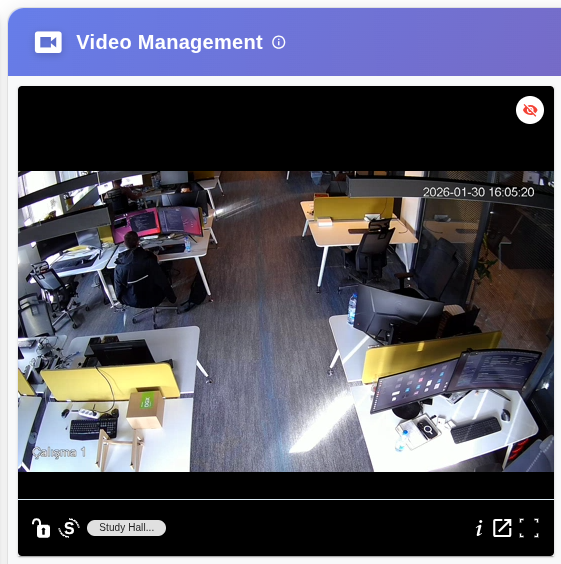
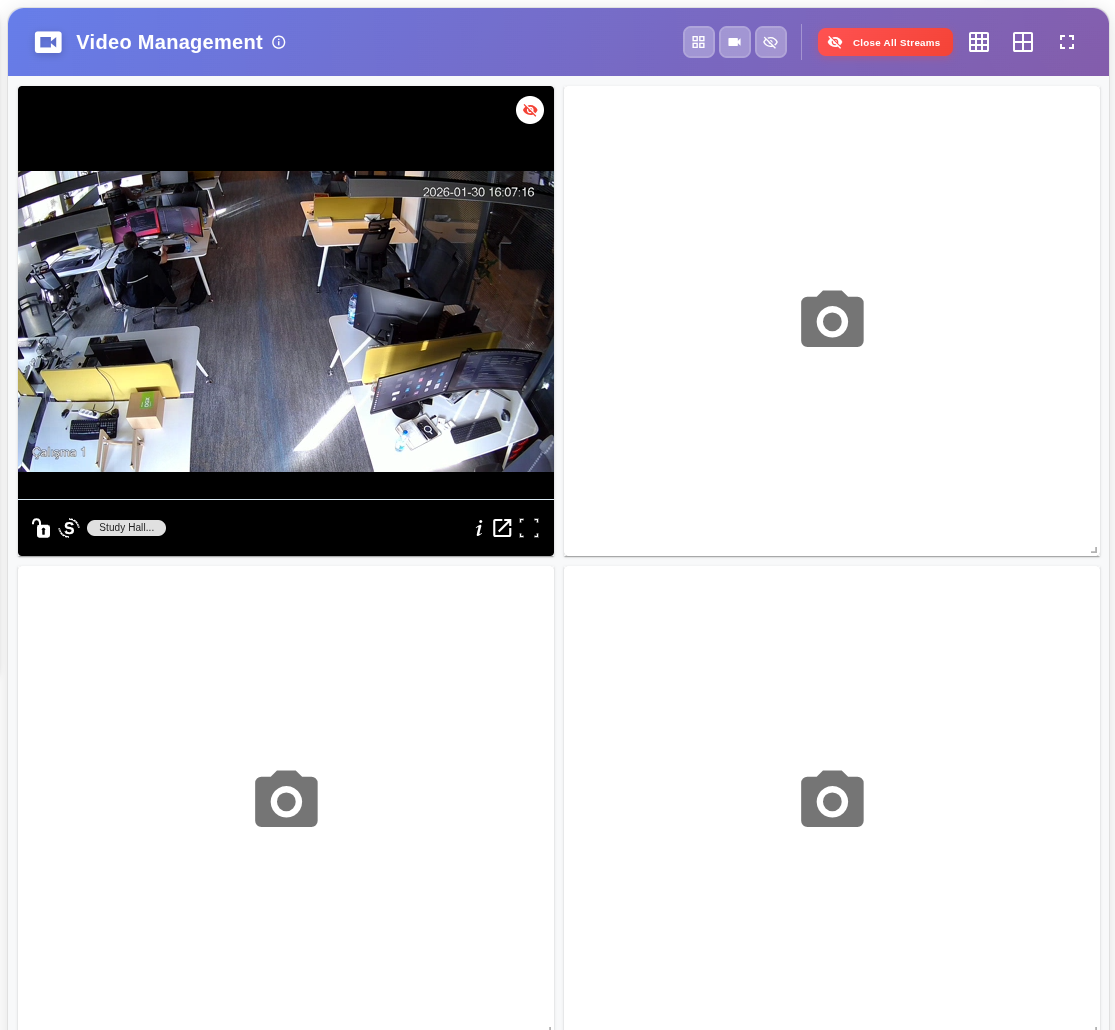
To access additional stream details, simply hover over the stream window to reveal the bottom bar. Here's what each icon on the bar represents, from left to right:
- Lock Icon: Locks and unlocks the bar on the window.
- "S" or "I" Letter: Labels the stream as either streaming or inferencing video.
- Camera Name: Displays the name of the camera with a white background.
- "i" Icon: Provides more information about your stream, including camera and connection type, stream duration, and downloaded stream data.
- Stream Details Icon: Expands the view to show more detailed information.
- Fullscreen Icon: Enlarges the stream to fullscreen mode for better viewing.
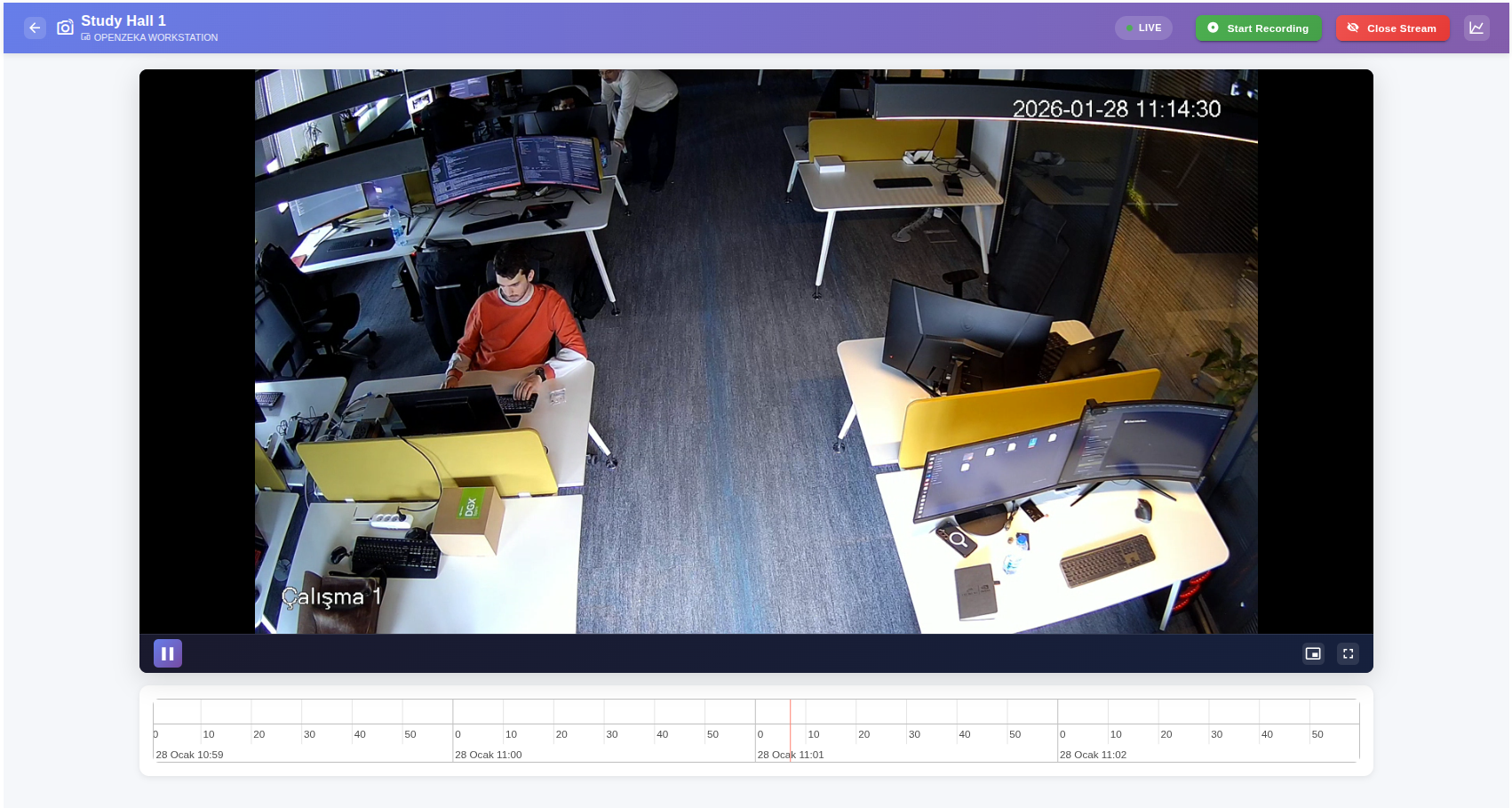
In the expanded view, you can use the icons displayed in the image below to stop or start the stream, view it in Picture-in-Picture mode, or expand it to full size.
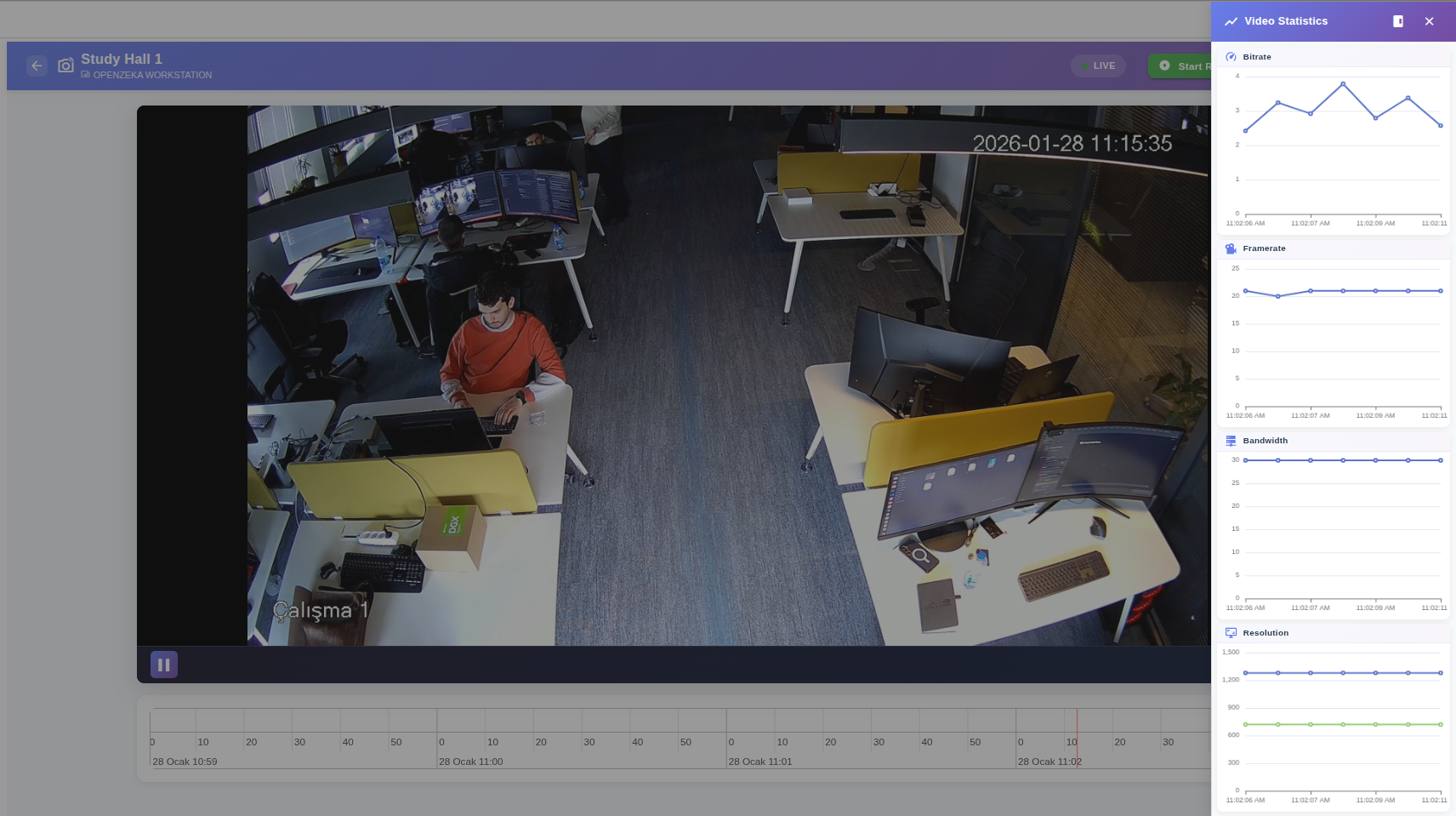
You can see more details about your stream by clicking the graph icon in the top right corner of the screen. A panel will appear where you can check the frame rate (FPS), bitrate, bandwidth, and resolution of your stream.
Closing the Stream
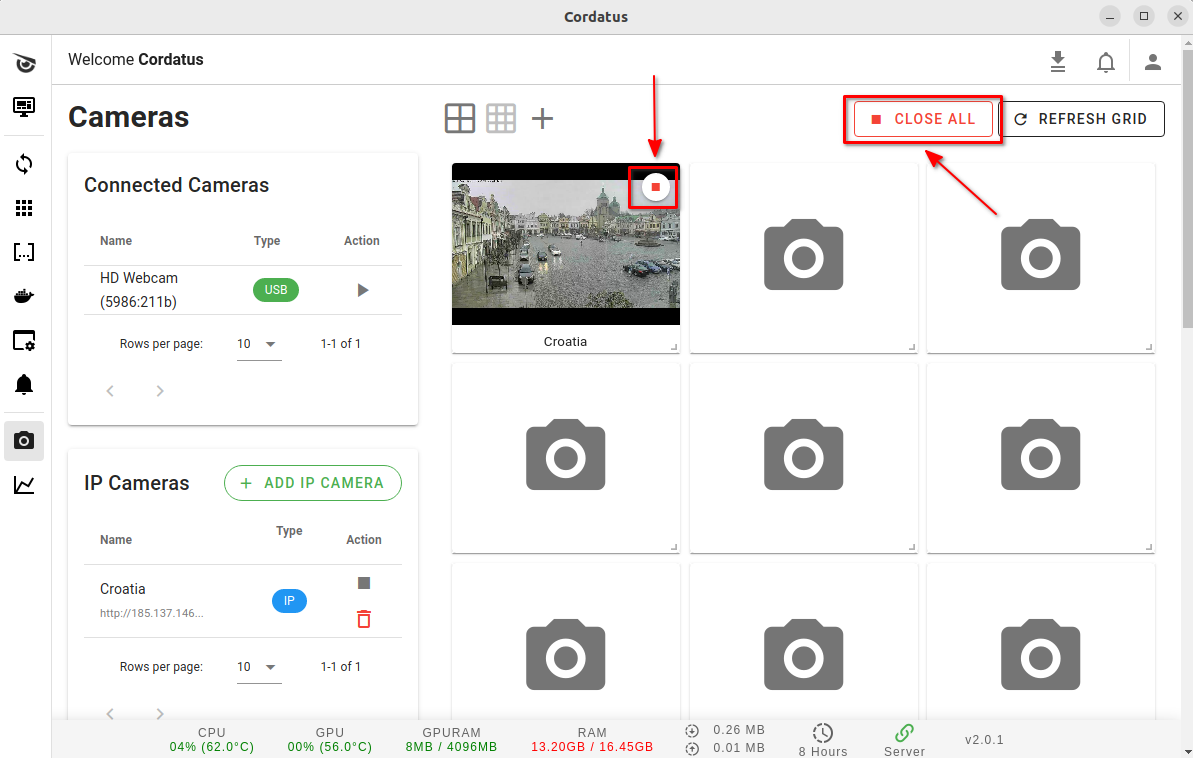
To close a stream, click on the red Close Stream icon at the top right of the respective stream. For closing multiple streams simultaneously, use the red Close All Streams icon at the top right corner of the page.
Streaming on Client
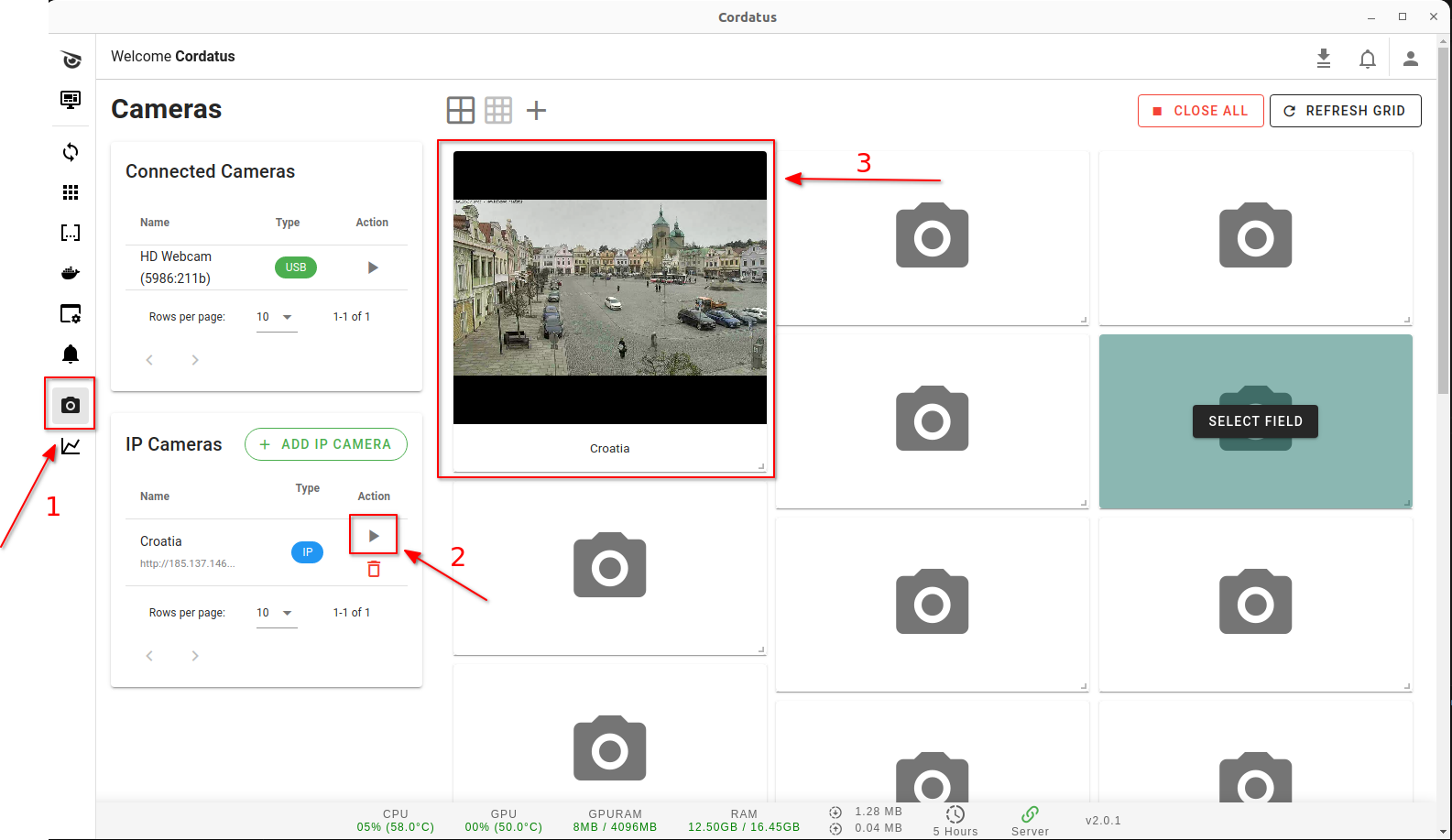
- Launch Cordatus Client and access the Cameras page.
- Click the Play button next to the camera you wish to view.
- The stream will commence and appear on the right side of the client.
Closing the Stream
To close a stream, click on the red Close Stream icon at the top right of the respective stream. For closing multiple streams simultaneously, use the red Close All icon at the top right corner of the page.