Preprocess
During inference operations, determining which areas the model will focus on is critical for improving performance and obtaining more meaningful results. Cordatus provides this control through the Region of Interest (ROI) feature.
Region-of-Interests (ROI)
By default, inference operations cover the entire frame of the camera. You can customize this by selecting a Region of Interest (ROI) and applying inference operations only to a specific area.
Additionally, you have the flexibility to select multiple ROIs. These selected areas will be combined and inference operations will be applied accordingly.
Setting Up ROI
To set up a Model Region of Interest (ROI), follow these steps:
- Go to the Jobs page.
- Find the job you want to set up an ROI for and click the Show Stream Details button. This will display the cameras streaming to the job on the Cameras page.
- Click on the preview of the camera you want to set up a Model ROI for.
- Click the Model Rois button located in the 3rd row of the panel on the right side, the New Model ROI modal will open.
- Draw the ROI you want to configure.
- Give the ROI a name.
- Select Model(s): If multiple models are running on the camera, select which models you want to run in this ROI. You can select multiple models.
- Click the Save button.
The selected ROI will be saved and immediately activated.
INFO: Remember that for the ROI to work correctly, the ROI size must be larger than a certain threshold value. This value varies depending on the model. Therefore, if an ROI you drew doesn't work properly, try increasing the ROI size and try again.
Using ROI with Multiple Models
When multiple models are running on a camera, you can separately determine which models will be active for each ROI. This feature offers flexibility by allowing different models to run in different areas.
Example Scenario:
Let's say PEOPLENET and TRAFFICCAMNET models are running simultaneously on a camera. You can configure different models to run in different ROIs as follows:
- ROI 1: Both PEOPLENET and TRAFFICCAMNET run
- ROI 2: Only PEOPLENET runs
- Remaining Areas: No models run (if all ROIs are deactivated, inference will be performed on the entire frame)
This way, you can optimize performance and obtain more meaningful results by distributing models according to the needs of each area.
ROI Options
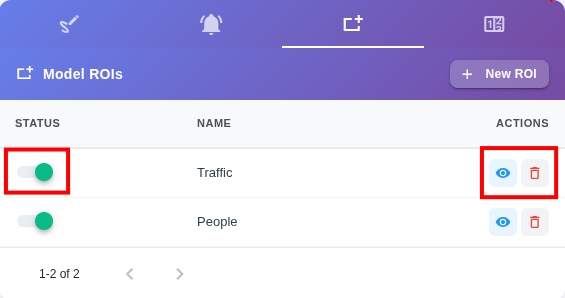
To make changes to a Region of Interest (ROI) on the Stream Details page, open the Model ROIs tab from the analytics table on the right.
From here, you can change the following options:
- Activate/Deactivate ROI: You can turn an ROI on or off using the toggle switch under the Status column.
NOTE: When you activate multiple ROIs, inference operations will be applied to the combined area. If you deactivate all ROIs, inference operations will be applied to the entire frame.
- ROI Preview: Click the eye icon to preview added ROIs. This option has no effect on the inference process.
- Delete ROI: You can delete an ROI by clicking the trash icon and confirming.
Copyright © 2025 Cordatus.